How to Fix AI-Generated Pixel Art and Turn It Into Real Game Sprites
AI image tools have gotten good at producing things that look like pixel art at a glance. Open the file in an editor at 800% zoom, though, and the illusion falls apart. The edges are anti-aliased. The "pixels" are different sizes. A 32-color sprite has 1,400 colors. And if you generated a four-frame walk cycle, none of the four frames are the same height. None of this is usable in a game until you fix it, and the fixing is the part nobody talks about.
I've shipped enough 2D games to know the difference between art that imports clean and art that fights you for an hour per sprite. So here's the actual cleanup pipeline I use when I want to fix AI pixel art and get it into an engine without it looking like garbage.
Why AI pixel art is messy in the first place
Diffusion models don't think in pixels. They think in smooth gradients and then downscale, which means the output is a high-resolution painting that happens to resemble pixel art. The "pixel" boundaries are suggestions, not a grid. That single fact causes most of the problems you'll hit.
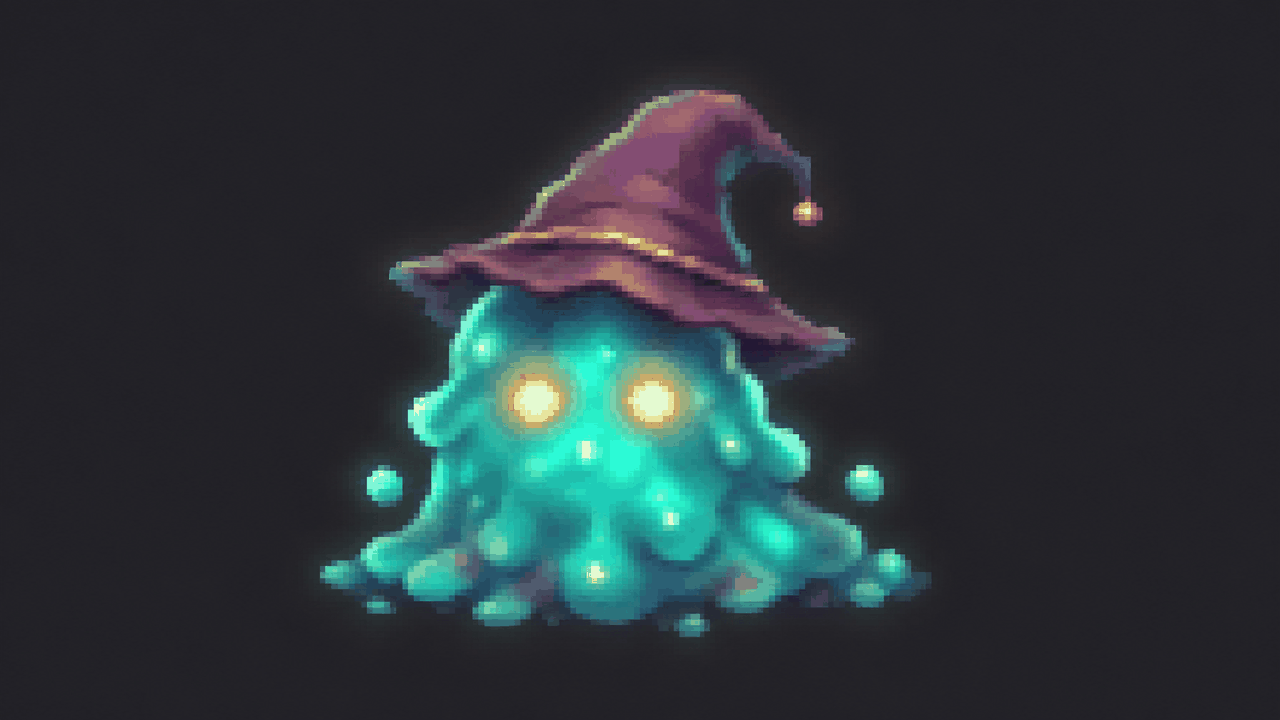
Concretely, here's what you're dealing with:
- Anti-aliased edges. Real pixel art has hard transitions. AI art blends, so a black outline fades to gray to transparent over three or four pixels. It looks soft and muddy when scaled up in-game with nearest-neighbor filtering.
- Off-grid pixels. What should be a clean 64x64 sprite is actually rendered at 1024x1024 with each logical pixel spanning roughly 16 real pixels — except not exactly 16, and not consistently. The blocks drift.
- Palette explosion. Because of the blending, a sprite that should use 24 colors ships with hundreds or thousands of near-duplicates that read as identical to your eye.
- Inconsistent cell sizes. Generate a sheet or a set of frames and the character's bounding box wanders. Frame 1 is 60 px tall, frame 2 is 67, frame 3 sits 4 px lower. In an animation that reads as jitter.
You can prompt around some of this ("flat colors, no anti-aliasing, limited palette") and it helps maybe 30%. The rest is cleanup work, and the order you do it in matters.
Step one: find the real pixel size and downscale
Before anything else, figure out the native resolution the AI was pretending to draw at. Open the image and measure how many real pixels one logical block spans. Pick a long, flat run of a single color — the side of a sword, a belt — and count. If a block is about 16 px wide on a 1024 px image, the sprite is "really" 64x64.
Now downscale to that target size using nearest-neighbor sampling, not bilinear or bicubic. This is the single highest-leverage step. Downscaling to the true grid forces every logical pixel down to one real pixel and throws away most of the blending in one shot. Aseprite, Photoshop (set image resampling to "Nearest Neighbor" / "Hard Edges"), or any tool that exposes the sampling mode will do it. GIMP calls it "None" in the interpolation dropdown.
If your guess at the native size is slightly off, the downscale will look wrong — wobbly diagonals, uneven line weights. That's your signal to try 48 or 72 instead of 64. It usually takes two or three tries to lock the grid. Once a diagonal line steps down evenly, one pixel at a time, you've found it.
The edge cleanup pass
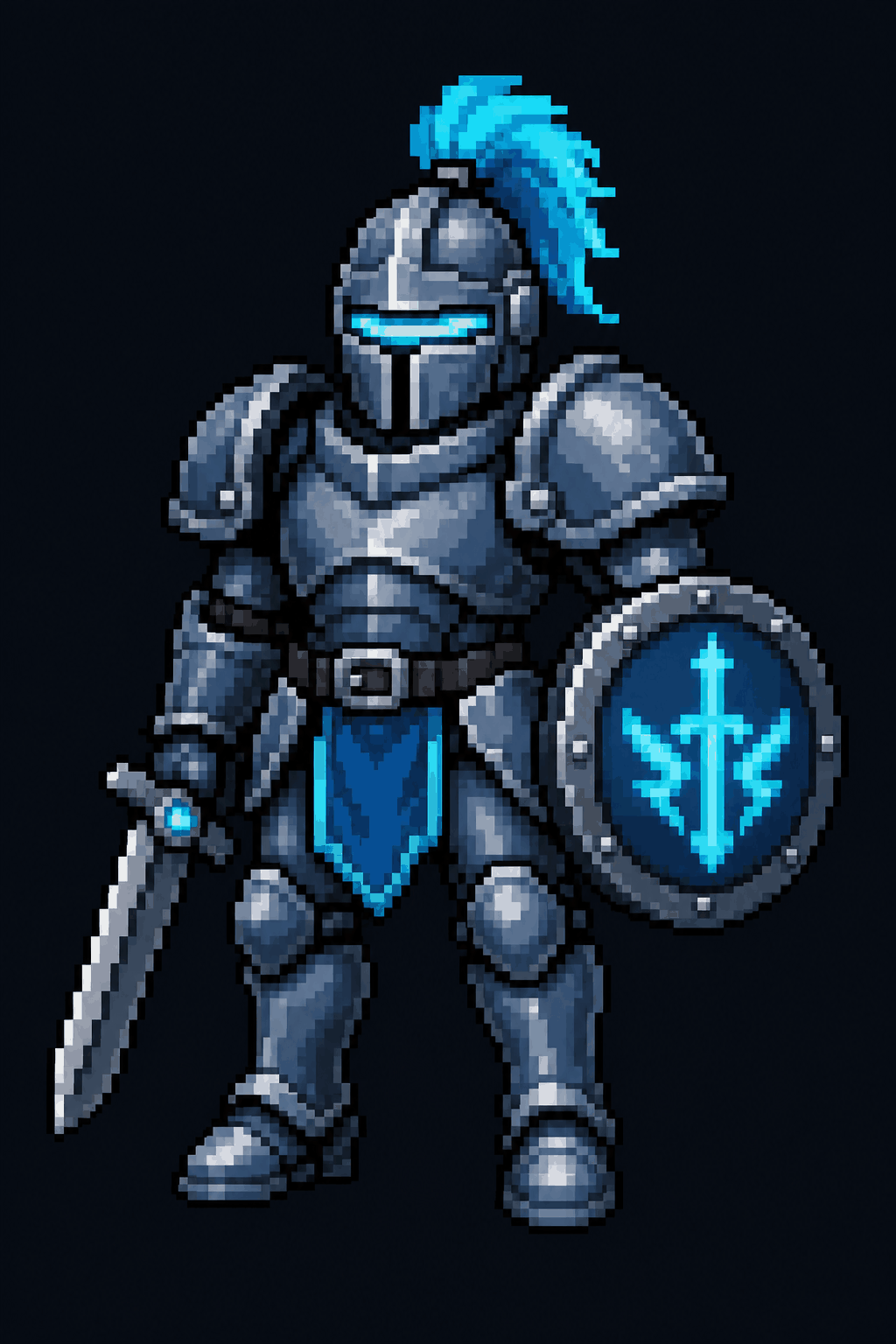
Even after a clean downscale you'll have leftover anti-aliasing on the outline — a ring of semi-transparent or off-color pixels. For a small sprite the fastest fix is a hard alpha threshold: anything below ~50% opacity becomes fully transparent, anything above becomes fully opaque. Most editors have a "threshold alpha" or you can do it with a levels adjustment on the alpha channel. It's blunt, but for game sprites blunt is correct. You want hard edges.
Step two: cut the palette down
With the image at true size, reduce the color count. The goal isn't a specific number — it's killing the near-duplicates so the sprite reads as deliberate pixel art instead of a tiny photo.
Use an indexed-color conversion. In Aseprite, Sprite > Color Mode > Indexed and let it build a palette, or set a target like 32 colors. In Photoshop it's Image > Mode > Indexed Color with a perceptual or selective palette and dithering turned off. Dithering is the enemy here; it scatters noise to fake more colors, which is the opposite of what you want. Start at 16 colors, look at it, bump to 24 or 32 if the character lost something it needed. Most single-character sprites live comfortably in 16 to 32 colors.
After the reduction, scan for two colors that are basically the same and merge them by hand. AI output loves to give you three nearly identical browns for one leather strap. Collapse them to one. The sprite gets crisper and your future self thanks you when it's time to recolor for a palette swap.
Step three: trim and normalize so frames line up
Now the part that actually makes an animation playable. Each frame has transparent padding around the character, and that padding is inconsistent. If you just drop the raw frames into your engine, the character will appear to bob and shift because the art isn't centered the same way frame to frame.
The fix is two operations done in sequence:
- Trim the transparent padding off every frame so you're left with a tight bounding box around the actual pixels.
- Normalize every trimmed frame onto a fixed-size canvas — say 64x64 — with consistent alignment. For anything that stands on the ground, align to the bottom so the character's feet sit at the same Y in every frame. That kills the vertical jitter completely.
Bottom alignment is the trick most people miss. Center-aligning trimmed frames keeps the head steady and makes the feet float, which looks wrong for a grounded character. Align feet to the bottom edge and the walk cycle suddenly reads as solid. For projectiles or floating objects, source/center alignment is fine.
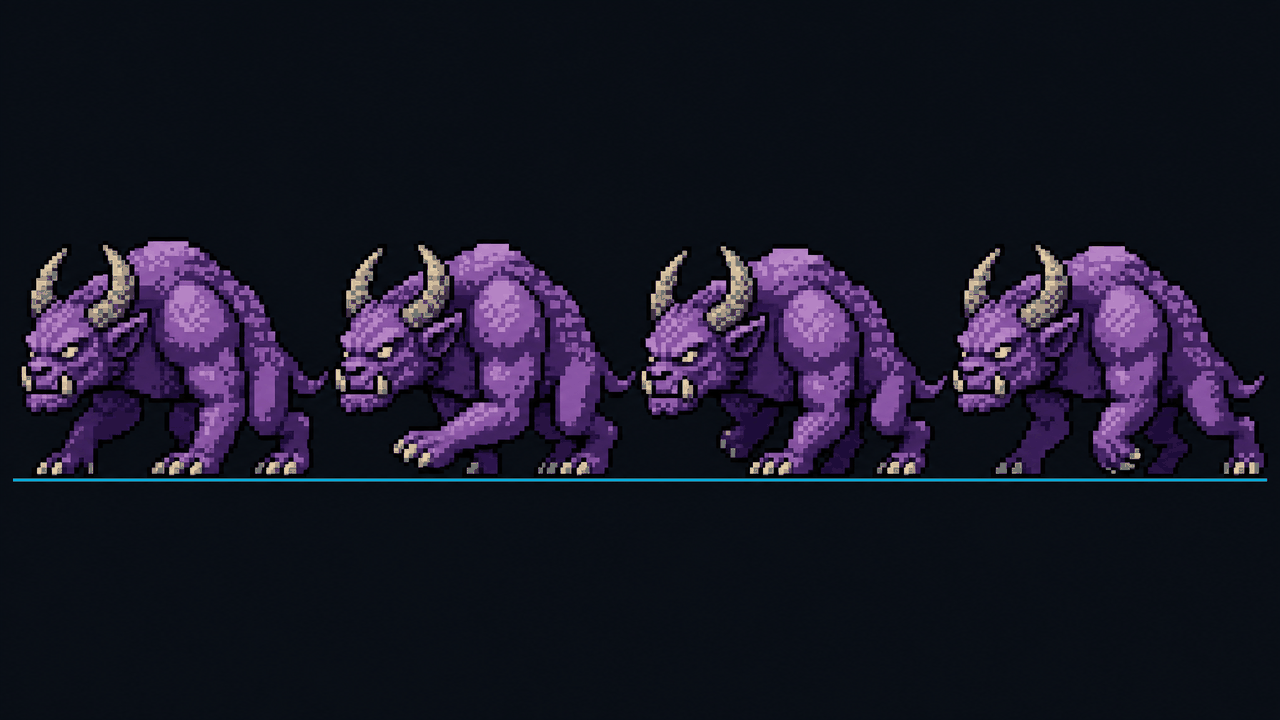
This trim-and-normalize step is tedious by hand across a dozen frames, which is exactly why I built Sprite Slicer. You load the sheet, set the grid (columns and rows, or explicit frame size with gaps and offsets, or let it auto-fit), and it auto-trims each frame's transparent padding and re-pads every one to a fixed square with bottom or source alignment. Then it exports — a folder straight to disk in Chrome or Edge, or individual file downloads in other browsers. It runs entirely in the browser; nothing gets uploaded anywhere, which matters if you're working with unreleased art.
A note on the source video case
A lot of "AI pixel art" now starts as AI-generated video — you describe a walk cycle and get a short clip. That's a reasonable way to get motion, but every frame you pull will have the exact problems above, plus compression artifacts from the video codec. Pull the frames out first (the companion Video Frame Extractor does this in-browser), then run each through the same pipeline: downscale to the true grid, reduce the palette, trim, normalize. Video makes the inconsistency worse, not better, because the model isn't tracking a fixed pixel grid between frames at all.
The order matters
If you take one thing from this: downscale to the true pixel grid first, before you touch the palette or the layout. Reducing colors on a blurry 1024px image just gives you a smaller set of blurry colors. Snapping to the grid first is what makes everything downstream behave. Then palette, then trim and normalize.
Done in that order, a sprite that looked like an AI screenshot turns into something that actually belongs in a game — hard edges, a tight palette, frames that line up. The AI pixel art to game sprite jump isn't one magic step; it's four boring ones in the right sequence. The boring part is the whole job.
FAQ
Q. Why does my AI-generated pixel art look blurry when I scale it up in my game?
Because the AI didn't actually draw on a pixel grid. It rendered a smooth, high-resolution image with anti-aliased (blended) edges that only resembles pixel art. When your engine scales that up with nearest-neighbor filtering, the soft transitions become obvious mush. Fix it by downscaling to the sprite's true native size with nearest-neighbor sampling, then hard-thresholding the alpha so edges are fully opaque or fully transparent.
Q. How do I figure out the real pixel size of an AI pixel art image?
Measure a long, flat run of a single color — the flat side of a weapon or a wall — and count how many real pixels one logical block spans. If a block is about 16 pixels wide on a 1024-pixel image, the sprite is really 64x64. Downscale to that size with nearest-neighbor. If diagonals come out wobbly, your guess is slightly off; try a neighboring size like 48 or 72 until lines step down one pixel at a time.
Q. How many colors should a cleaned-up AI pixel sprite use?
There's no single right number, but most single-character sprites sit comfortably in 16 to 32 colors. Convert to indexed color with dithering turned off, start at 16, and bump up only if the character lost detail it needed. The real goal is eliminating the hundreds of near-duplicate colors AI output produces, so the sprite reads as deliberate pixel art rather than a tiny photo.
Q. Why do my AI animation frames jitter even though each frame looks fine?
Because each frame has a different amount of transparent padding and the character's bounding box drifts from frame to frame. Trim the transparent padding off every frame, then re-pad each onto a fixed-size canvas with consistent alignment. For grounded characters, align to the bottom so the feet sit at the same Y position in every frame. That removes the vertical bobbing entirely. Sprite Slicer automates the trim-and-normalize across a whole sheet.
Q. Can I just prompt the AI to avoid these problems instead of cleaning up afterward?
Prompts like 'flat colors, no anti-aliasing, limited palette' help maybe 30 percent, but they don't fix the core issue: diffusion models work in gradients and don't respect a fixed pixel grid. You'll still get off-grid pixels, soft edges, and palette bloat. Plan on a cleanup pass regardless. The good news is the pipeline is mechanical once you know the order: downscale to grid, reduce palette, trim, normalize.