How to Import a Sprite Sheet into Unity, Step by Step
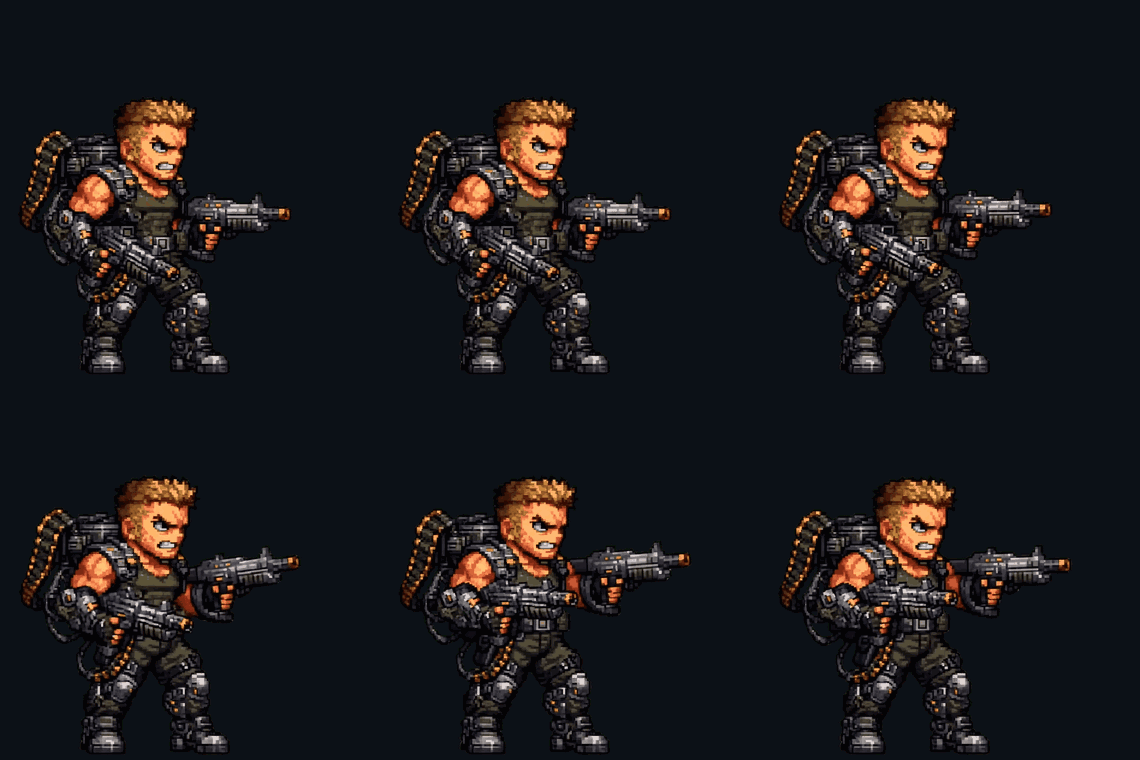
The first time I dragged a sprite sheet into Unity I expected magic, and what I got was a single fuzzy rectangle that looked nothing like the crisp pixel art in my image editor. Everything after that was me learning, the slow way, which checkboxes Unity hides where. None of it is hard once you know the order, but the order matters, and getting one setting wrong early means redoing the whole thing later. So here is the path I actually use now, start to finish, with the real menu names so you can follow along inside the editor.
Get the PNG into the project
Drop your sprite sheet PNG straight into the Assets folder in the Project window. You can drag it from your file browser onto the folder, or right-click and choose Import New Asset. Either works. Unity picks it up immediately and creates a .meta file next to it that stores the import settings we are about to change, which is also why these settings stick per-asset and you only do this once per sheet.
A small habit that saves grief later: keep your sheets in a dedicated subfolder like Assets/Sprites/. When you have forty enemies and the project window is a wall of files, you will thank yourself. If the sheet came out of the loopsprite Sprite Slicer or got pulled from gameplay footage with the Frame Extractor, it lands in the project exactly like any other PNG. There is nothing special about where the frames came from.
Set the texture up as a sprite sheet
Click the sheet once to select it. The Inspector on the right now shows the texture import settings. This panel is where the whole thing lives, so get comfortable with it.
- Set Texture Type to
Sprite (2D and UI). By default Unity may have imported it as a default texture, which is why it looked wrong. - Set Sprite Mode to
Multiple. This is the one everybody misses. Single treats the whole image as one sprite. Multiple tells Unity the image contains many frames you intend to carve up. - Click Apply at the bottom of the Inspector. Nothing visibly happens, but Unity has now committed the change. If you skip Apply, the next steps will be greyed out or behave oddly.
That last point catches everyone at least once. Unity does not auto-save Inspector changes for textures; the Apply button is the commit, and an unapplied Multiple mode is just a promise.
Slice the sheet in the Sprite Editor
With the sheet still selected, click Sprite Editor in the Inspector. A window opens showing your full sheet. Up in the top-left is a Slice dropdown, and this is where the actual cutting happens.
Open Slice and pick a Type:
- Grid By Cell Size — you type the frame width and height in pixels, for example
64x64. Use this when you know your frame dimensions, which honestly you almost always do. - Grid By Cell Count — you type the number of columns and rows instead, and Unity divides the image evenly. Handy when the math is annoying but the layout is a clean grid.
Then set the Pivot. For a character standing on the ground, choose Bottom so the feet are the anchor point. For a spinning coin, a projectile, or anything that should rotate or scale around its middle, use Center. This single choice decides whether your animation looks planted or like it is hovering, so do not rush it.
Click Slice, then Apply in the Sprite Editor's title bar, and close the window. Back in the Project window, your texture now has a small expand arrow. Unfold it and you will see the sheet has burst into numbered sub-sprites — name_0, name_1, and so on. Those numbered children are your frames, and they are what you animate. If your sheet has gaps or odd offsets that the plain grid can't handle, that is a slicing problem, not a Unity problem, and it is worth fixing upstream first; my guide to slicing a sprite sheet covers grids, gaps, and offsets in detail.
Make it pixel-perfect
If your art is pixel art, Unity's defaults will quietly soften it into mush. Select the texture again and fix four things in the Inspector before you go any further:
- Filter Mode =
Point (no filter). This is the big one. The default Bilinear blends neighbouring pixels and turns sharp edges into a smear. - Compression =
None. Compression introduces color artifacts that are invisible on a photo and glaringly obvious on a 32-color palette. - Pixels Per Unit = your frame size. If each frame is 64 pixels and you want one frame to equal one world unit, set it to
64. This controls how big the sprite is in the scene, and matching it to your frame size keeps your math sane. - Generate Mip Maps = off. Mip maps are for 3D textures viewed at distance; for 2D sprites they only add blur and waste memory.
Click Apply again. If you later notice draw calls climbing because you have a lot of sprites on screen, you can add the frames to a Sprite Atlas (Assets → Create → 2D → Sprite Atlas) so Unity batches them into one draw call. It is optional and you do not need it on day one, but it is the right answer when performance starts to bite.
Turn the frames into an animation
Here is the part that feels like a cheat code the first time. Unfold the sliced texture so the numbered sub-sprites are visible. Select the frames in order — click the first, shift-click the last, and double-check the selection is sequential because Unity respects the order you hand it. Now drag that whole selection together into the Scene view or the Hierarchy.
Unity does three things at once:
- It creates an Animation clip from your frames.
- It creates an Animator Controller and a GameObject wired to play that clip.
- It prompts you to save the clip — give it a real name like
Goblin_Walk.animand put it somewhere you'll find it.
Select the new clip and open the Animation window. Set Samples — that is the playback frame rate — to around 12. Twelve reads as lively without feeling frantic; classic hand-drawn animation lived at twelve for a reason. Then make sure Loop Time is ticked on the clip's import settings, or your walk cycle plays once and freezes mid-stride like the character forgot what it was doing. Press play and watch it loop.
The gotchas that will get you
Every one of these has cost me an evening at some point, so let me save you the trouble:
- Blurry sprite — Filter Mode is not set to
Point. This is true in roughly nine out of ten "why does my pixel art look bad" cases. Fix it and Apply. - Seams or color bleeding between frames — adjacent frames are leaking into each other at the cut lines. You need padding around each frame, or a Sprite Atlas configured with padding. Tight-packed sheets with zero gutter are the usual culprit.
- Sprite slides or jitters between frames — the wrong pivot. Mixed or center pivots on a grounded character make the feet drift frame to frame. Use Bottom for anything standing on the ground.
- Frames out of order — you selected the sub-sprites non-sequentially before dragging. Delete the clip and re-select carefully.
One thing worth saying plainly: most of these failures are baked in before Unity ever sees the file. A sheet with inconsistent frame boxes will fight you no matter how careful your import is, which is why I normalize frame sizes first — there is a whole guide on consistent cell sizes if your frames are all over the place. And if you work in more than one engine, the same sheet imports into Godot along very similar lines; my Godot 4 import walkthrough mirrors this one.
FAQ
Q. Why is my sprite blurry after import?
Almost always because Filter Mode is set to Bilinear instead of Point (no filter). Select the texture, switch Filter Mode to Point, and click Apply. Compression set to anything other than None can add a subtler haze on top of that, so set both.
Q. What is the difference between Grid By Cell Size and Grid By Cell Count?
Cell Size asks for the pixel dimensions of one frame (like 64x64). Cell Count asks for how many columns and rows the sheet has, and Unity divides evenly. They reach the same result; pick whichever number you already know.
Q. Should the pivot be Bottom or Center?
Bottom for characters and anything standing on the ground, so the feet stay anchored. Center for projectiles, coins, effects, or anything that rotates or scales around its middle. The wrong choice makes the sprite appear to slide or float between frames.
Q. How do I change the animation speed after I make the clip?
Open the Animation window with the clip selected and adjust Samples — that's the frame rate. Around 12 is a good default for character animation. Higher feels smoother and faster, lower feels choppier.
Q. My animation only plays once and then stops. How do I loop it?
Select the .anim clip, look at its import settings in the Inspector, and tick Loop Time. Without it, Unity plays the clip a single time and holds the last frame.
Q. Do I need a Sprite Atlas?
Not to get started. An atlas batches many sprites into one draw call, which matters when you have lots of sprites on screen and want better performance. Add one (Assets → Create → 2D → Sprite Atlas) when draw calls become a problem, and enable padding on it to prevent edge bleeding.