From a Character Image to an Animatable Clip (Image-to-Video, the Right Way)
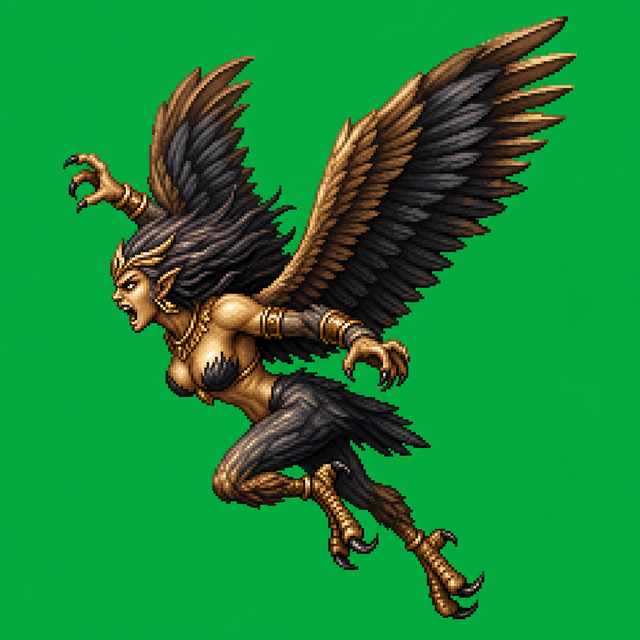
Most guides about turning AI video into sprites jump straight to the fun part — scrubbing a clip and pulling frames. But there's an earlier step that decides whether the whole thing works, and almost nobody talks about it: how you get from a single still image to a video clip worth extracting in the first place. You can have a perfect extraction workflow and still end up with garbage frames if the clip you fed in was wrong. Garbage in, garbage out, frame by frame.
I build little 2D games on the side — my current one is a tower-defense thing in the Plants vs. Zombies mold, a lane of attackers shuffling toward plant defenders. Every plant and zombie in it started life as a single GPT image, then I animated each one into a short looping clip before slicing it into frames. So this is the exact pipeline I run, not a theory. Let me walk through it in order.
Get the source still right first (this is 80% of it)
The still is the part you actually control, so spend your effort here. Once you hand it to a video model you're at the mercy of a slot machine, and a great clip can't be built on a bad still. A few things matter, and they all matter more than they sound:
- A clear, readable silhouette. Squint at your image. If you can't tell what the character is from the outline alone, neither can a player at sprite size. A zombie should read as a zombie at 64 pixels tall. Fussy internal detail disappears; the shape is what survives.
- A flat, solid-color background. Not a scene. Not a graveyard, not a lawn. One matte color. And here's the part people get wrong — pick a color that does not appear anywhere on the character. Everyone reaches for chroma-key green out of habit, but if your zombie has a greenish tint (mine all do), green is the worst possible choice. I usually use flat magenta or a mid-grey instead. They key out just as cleanly and they don't collide with skin, foliage, or moss.
- Generous breathing room on all sides. Pad the frame. Video models love to drift the subject around, and if an arm swings out of frame mid-animation, those frames are dead. Give it margin to move into.
- A side or three-quarter view. For a lane-based game especially, profile or three-quarter reads as a sprite far better than a heroic front-on portrait. Front-facing characters look great as art and terrible as something that has to walk left.
The background color is the one I'd underline twice. You will want transparency eventually, and keying out a single consistent color is a one-pass job. Masking a character off a busy AI-painted backdrop is manual, frame-by-frame misery. Solve it at the source by never painting a backdrop at all. If you want the full chroma-key walkthrough, I wrote one up in remove the background.
Image-to-video: describe exactly one motion
Now you take that still and feed it to a video model's image-to-video mode. Not text-to-video — image-to-video, where the still is the anchor and the prompt only describes the motion. I'll explain why that distinction is the whole ballgame in a second, but first the prompt itself.
Describe one motion. One. "Character idles, slight sway, weight shifting." Or "runs in place, walk cycle, feet stepping." The instant you ask for two things — "idles and then attacks" — the model tries to choreograph a scene and you lose the clean loop. Keep it to a single repeating action.
Then add the constraints that every video model will otherwise ignore, because their defaults are tuned for cinematic clips, not sprites:
- Demand a static camera. Spell it out:
static camera, no zoom, no pan, no parallax. Left to its own devices the model will push in or drift sideways for "drama," and a moving camera makes a sprite loop impossible. - Lock the background. Add
flat solid magenta background, unchanged throughout. Models love to quietly repaint your clean matte into a gradient or add ambient particles. Tell it not to, every time. - Ask for cyclical motion. Idle bob, run cycle, hover, attack-and-reset — anything that returns to where it started. This is what makes a seamless loop possible downstream, and it's worth requesting explicitly rather than hoping.
- Keep it short: 2 to 4 seconds. Longer clips drift more and just give you more near-identical frames to wade through. Two seconds of a clean idle is plenty.
Then generate several takes and treat it like a slot machine, because it is one. I rarely keep the first pull. I'll run four or five and pick the one take where the motion loops naturally and the character holds its design — no melting face, no extra finger, no jacket that changed color halfway. Most takes fail one of those two tests. That's normal. Budget for it.
Why image-to-video beats text-to-video
This is the part worth internalizing, because it explains every rule above. The enemy in AI sprite work is drift — the character quietly remodeling itself from frame to frame. Pure text-to-video is drift heaven: you describe a zombie and the model invents a fresh one every few frames. Colors shift, fingers multiply, the face subtly rebuilds itself, the silhouette wobbles. You cannot slice clean frames out of a clip where the subject won't sit still.
Starting from a fixed still gives the model an anchor. It's no longer imagining a character — it's animating a specific one you already locked down. The design still drifts a little (it always does), but you've cut the variance enormously. This is the single biggest reason my plants and zombies stay on-model across a clip: the GPT still did the identity work once, and the video model only has to add motion, not reinvent the design.
It also means your careful source-still work pays off. The readable silhouette, the flat background, the framing — all of it carries through into the video, because the video is built on top of it. With text-to-video you'd be throwing that control away and praying.
Hand the clip to the extractor
Once you have a take you like, the clip goes to the Sprite Frame Extractor. That's the downstream half of the pipeline: scrub to your loop range, drop the framerate to something sane (12 to 15 fps, not the video's native 30), and export a PNG sequence or a looping GIF/APNG. It all runs locally in your browser — the video never gets uploaded anywhere. I've written the full extraction-side walkthrough in AI video → game sprites, and the specifics of trimming a clean cycle without a stutter in seamless sprite loops.
One honest warning about what you'll see in those clips: they shimmer. Even a good image-to-video take will have the character's colors wobble subtly between frames — a few RGB values of breathing, a faint flicker on edges. It's the AI-video signature, and at small sprite sizes it's usually tolerable, but on flat-color characters it can get distracting. I deal with it after extraction, and there's a dedicated writeup for it in fix AI video flicker. Worth knowing it's coming so it doesn't surprise you.
A note on picking a model
Not every video model is equally good at the "hold a character still and add one motion" job that sprite work needs. Some are tuned for sweeping cinematic shots and fight your static-camera instruction at every turn; others handle locked-off, looping motion gracefully. I compared the ones I've actually run through this pipeline in best AI video for sprites, models compared. The short version: favor a model that respects "static camera" and holds the source design over one that produces prettier but less controllable footage.
The whole loop, in one breath
Draw the character as a single clean still on a flat color that isn't on the character, with a readable silhouette and room to move. Feed that still to a video model's image-to-video mode and ask for exactly one cyclical motion, static camera, locked background, two to four seconds. Pull the slot-machine lever a few times and keep the take that loops and stays on-model. Then hand the clip to the extractor, drop the framerate, find a real loop, and export. That's how every plant and zombie in my game got from "a picture" to "a thing that moves." Get the still right and the rest mostly falls into place.
FAQ
Q. Why feed a still to image-to-video instead of just using text-to-video?
Consistency. Text-to-video lets the character drift between frames — colors shift, fingers multiply, the face rebuilds itself — and you can't slice clean sprite frames out of a subject that won't hold still. Generating one locked still first and using the model's image-to-video mode anchors the design, so the character stays on-model across the clip. It still drifts a little, but far less.
Q. What background color should the source still use?
A flat, solid color that does not appear anywhere on the character. Everyone defaults to chroma-key green, but if your character has any green on them (mine usually do), green is the worst pick. Flat magenta or a mid-grey key out just as cleanly and won't collide with the character's palette. You'll want transparency eventually, and removing one consistent color is a one-pass job versus masking off a painted scene frame by frame.
Q. What should the image-to-video prompt actually say?
Describe exactly one motion — "idles, slight sway" or "runs in place, cycle" — and nothing else. Then add the constraints the model will otherwise ignore: static camera, no zoom or pan; flat solid background, unchanged throughout; cyclical motion; and a short duration of 2 to 4 seconds. Asking for two motions or leaving the camera unspecified is how you end up with an unloopable clip.
Q. How many takes should I generate?
Several, and treat it like a slot machine. I typically run four or five and keep the one take where the motion loops naturally and the character holds its design. Most takes fail one of those two tests — that's normal, not a sign you did something wrong. Budget generation credits for the misses.
Q. Why does my clip flicker or shimmer in color?
It's the AI-video signature — the character's colors wobble a few values between frames, with faint edge flicker. Even good image-to-video takes do it. At small sprite sizes it's often tolerable, but on flat-color characters it can distract. It's fixable after extraction; the steps are in the fix AI video flicker guide.
Q. What happens after I have the clip?
You hand it to the Sprite Frame Extractor: scrub to your loop range, drop the framerate to 12–15 fps, and export a PNG sequence or looping GIF/APNG, all locally in your browser. The full downstream walkthrough is in AI video → game sprites, and getting a stutter-free loop is covered in seamless sprite loops.