How to Get a Seamless Sprite Loop From a Video Clip

I have shipped a lot of looping sprites, and I can tell you exactly which ones I am still proud of: the ones where you cannot find the seam. You stare at the idle bob for thirty seconds and there is no tick, no little hiccup where the animation snaps back to the start. That smoothness is not luck. It is a handful of decisions you make while you are scrubbing the clip, and if you get them right, the loop holds forever. If you get them wrong, every viewer's eye lands on the same stutter, over and over, because that is what a bad loop does — it repeats its own mistake on a timer.
This guide is about pulling that clean loop out of a video clip using the Sprite Frame Extractor. No automatic seam-fixer, no magic button. Just your eyes and a couple of habits.
What "seamless" actually means
A loop is seamless when the jump from the last frame back to the first frame is no more jarring than any transition inside the loop. That is the whole definition. Frame 8 flows into frame 1 the same way frame 3 flows into frame 4. If an outside observer cannot tell where the tape splices, you are done.
People assume the hard part is the frames themselves. It is not. The hard part is the single transition that the software never shows you in isolation — the wrap. When a clip plays straight through, you watch frame 1 to frame N once and you are finished. A loop plays N-to-1 again and again, and that transition was never in your source video at all. You are creating it by choosing where to cut.
Ask for cyclical motion before you ever open the tool
Here is the part nobody wants to hear: you cannot trim your way out of bad source. If the motion in your clip does not return to where it began, no in/out point will hide the seam, because there is no matching pose to cut on. A character that drifts to the right and stays there will always teleport back to the left when the loop wraps. That is a hard no.
So the loop is won upstream, in the prompt or the capture. When I generate or film a clip for looping, I explicitly ask for cyclical action:
- Idle — a gentle breathing bob, a float, a tail flick that settles back to neutral.
- Run / walk — a full stride that returns the lead foot to the same point in the gait.
- Hover — the up-and-down of a flying unit, like the scout in the figure above.
- Attack-and-reset — wind up, strike, recover all the way back to the resting stance.
"Attack-and-reset" is the underrated one. A lot of attacks read as one-shots, but if the clip ends back in the idle pose it started from, it loops fine. If your generated video does not cycle, that is a generation problem, not an editing problem — fix it there. My full AI-video-to-sprites workflow covers how to phrase those prompts so the motion comes back home.
Finding the loop: scrub for two matching poses
This is the core move, and it is dead simple once you have done it a few times. You are not looking for a "good start" and a "good end." You are looking for the same pose, twice, at two different moments in the clip. Everything between those two moments becomes your loop.
Concretely, in the extractor:
- Pick a recognizable instant in the motion. For an idle bob, the very bottom of the dip is great — it is a clear, repeatable pose. For a stride, pick the frame where the front foot plants.
- Scrub to the first time that pose happens and use Set Start.
- Scrub forward to the next time the exact same pose happens — the next bottom of the bob, the next time that foot plants — and that is your end region.
- Now you have one full cycle bracketed. Frame N and frame 1 are practically the same pose, which is exactly the condition for a clean wrap.
The bottom of an idle bob is my favorite anchor because it is unambiguous. The top can be mushy — the character hangs there for a beat and you cannot tell which frame is "the" top. The bottom is a hard turnaround, easy to hit twice.
The one bug everybody hits: the duplicated frame
If your loop stutters, this is almost certainly why. You found two matching poses, you set your in and out points, and the loop ticks anyway. The reason is that your last kept frame and your first kept frame are the same pose — so that pose plays twice in a row, once at the end and once at the start, every single cycle. One held frame in an otherwise moving animation reads as a hitch. Your eye catches it instantly.
The fix is to make the loop exclusive at one end. The cycle should contain the start pose once, not twice. So when you set your out point, keep the frame just before the motion returns to the start pose — not the frame where it has already arrived.
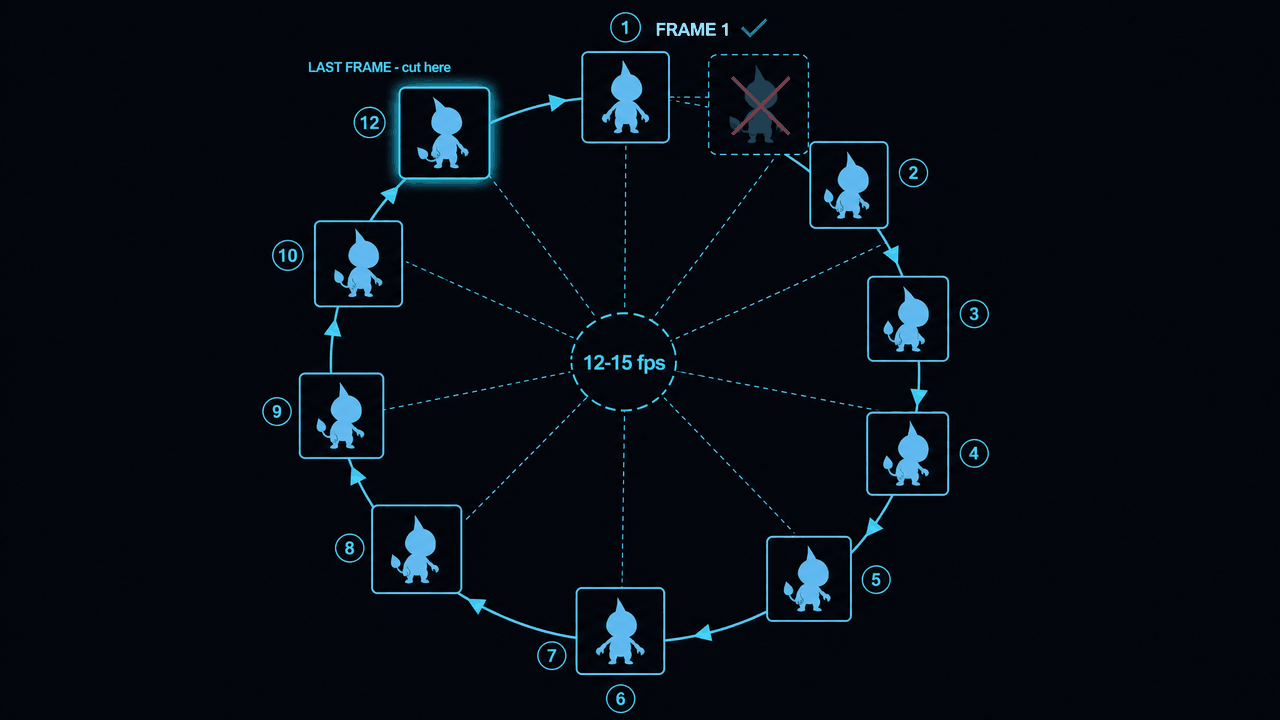
I think of it as a clock. The start pose is twelve o'clock. The motion travels around the ring and comes back. If you keep the frame at twelve at both ends, you have two twelves and the loop double-taps. So cut on eleven o'clock, not twelve — keep the last frame before the hand returns to the top, and let the wrap supply the twelve. One twelve per loop. Seam gone.
Same rule for a walk: if frame 1 is "left foot fully forward," your last kept frame should be the step just before the left foot is fully forward again — not the frame where it has already planted. The wrap completes the step for you.
Pick a frame rate that makes adjacent frames distinct
Loops live or die on frame rate too. I extract sprite loops at 12 to 15 fps, and there is a real reason beyond "that is the retro look." At 12–15 fps, each frame is visibly different from its neighbor, which means motion reads as deliberate animation rather than smeared video. It also keeps your frame count low, which matters when you are hand-checking every transition.
Crank it up to 24 or 30 and two problems show up. First, adjacent frames look nearly identical, so finding two matching poses becomes a guessing game — half a dozen frames all look like "the bottom of the bob." Second, you now have twice the frames to inspect for the seam, and twice the chance one of them is a soft duplicate. Twelve to fifteen is the sweet spot: distinct frames, manageable count, and it is forgiving when you nudge the loop by a frame.
Verify by eye with Play Loop, then nudge
Once your start and end are set, hit Play Loop and just watch. Do not analyze — watch. A bad seam announces itself. Your eye will twitch toward the exact moment it pops, every cycle, because that is the one event that repeats. If nothing pops after a dozen cycles, you have it.
If one frame does pop, do not start over. Nudge. Move the out point one frame earlier or one frame later and play it again. Nine times out of ten the seam was a one-frame-off duplicate, and a single-frame trim on the end kills it. Sometimes the start is the culprit instead — try moving it one frame. This is a thirty-second fiddle, not a redo. If your clip had real cyclical motion to begin with, the perfect cut is within a frame or two of where you guessed.
And here is the honest tradeoff, the thing I will defend to anyone: a loop you found by eye beats any automatic seam-fixer. Auto-blenders cross-fade or morph the wrap, and on a sprite that means muddy in-between frames, ghosting, or a soft smear right at the splice — exactly where the eye is already looking. They are papering over a loop that was never found. Finding the real loop point costs you a minute of scrubbing and gives you crisp frames with no artifacts. That is not a close call.
A quick word on flicker
If your individual frames shimmer or the colors crawl between frames — an AI-generation tell — that will read as a "seam" even when your loop point is perfect, because the instability never settles. That is a different problem with a different fix; I wrote it up separately in fixing AI video flicker. Stabilize the frames first, then find the loop. A clean loop on flickery frames still flickers.
FAQ
Q. My loop still stutters even though my start and end poses look identical. Why?
Because identical is the problem, not the goal. If the last kept frame and the first frame are the same pose, that pose plays twice in a row and you get a hitch. Make the loop exclusive: keep the frame just before the motion returns to the start, and let the wrap supply the start pose once. Cut on eleven o'clock, not twelve.
Q. Can I just use an automatic loop-smoother instead of doing this by hand?
You can, but on sprites it usually looks worse. Auto-smoothers cross-fade the wrap, which produces ghosting or a soft smear right at the splice — the exact spot the eye is drawn to. A loop found by eye keeps every frame crisp. The manual method costs about a minute and beats the automatic one.
Q. What frame rate should I extract a loop at?
12 to 15 fps for most sprite work. That keeps adjacent frames visibly distinct, which makes finding matching poses easier and keeps the frame count low enough to hand-check the seam. Higher rates make frames look near-identical and double your inspection work.
Q. My clip drifts and never returns to its starting position. Can I still loop it?
Not cleanly. If the motion does not come back to where it began, there is no matching pose to cut on, and the wrap will always teleport. Fix it upstream by requesting cyclical motion — idle, run, hover, attack-and-reset — when you generate or film the clip. No trimming can rescue non-cyclical source.
Q. How do I know where the loop point is without guessing?
Pick one unambiguous pose — the bottom of an idle bob, the frame a foot plants — and find the two moments it occurs. Set Start on the first, end the selection on the second. Everything between is one cycle. The bottom of a bob is a better anchor than the top because it is a hard turnaround.
Q. The loop plays well in the extractor — will it survive export?
If Play Loop looks seamless by eye, the exported GIF, APNG, or sheet will loop the same way, because it is the same frame sequence. Just confirm your engine or viewer is not adding its own hold frame on top. What you preview is what you ship.