How to Turn a Video into a PNG Frame Sequence
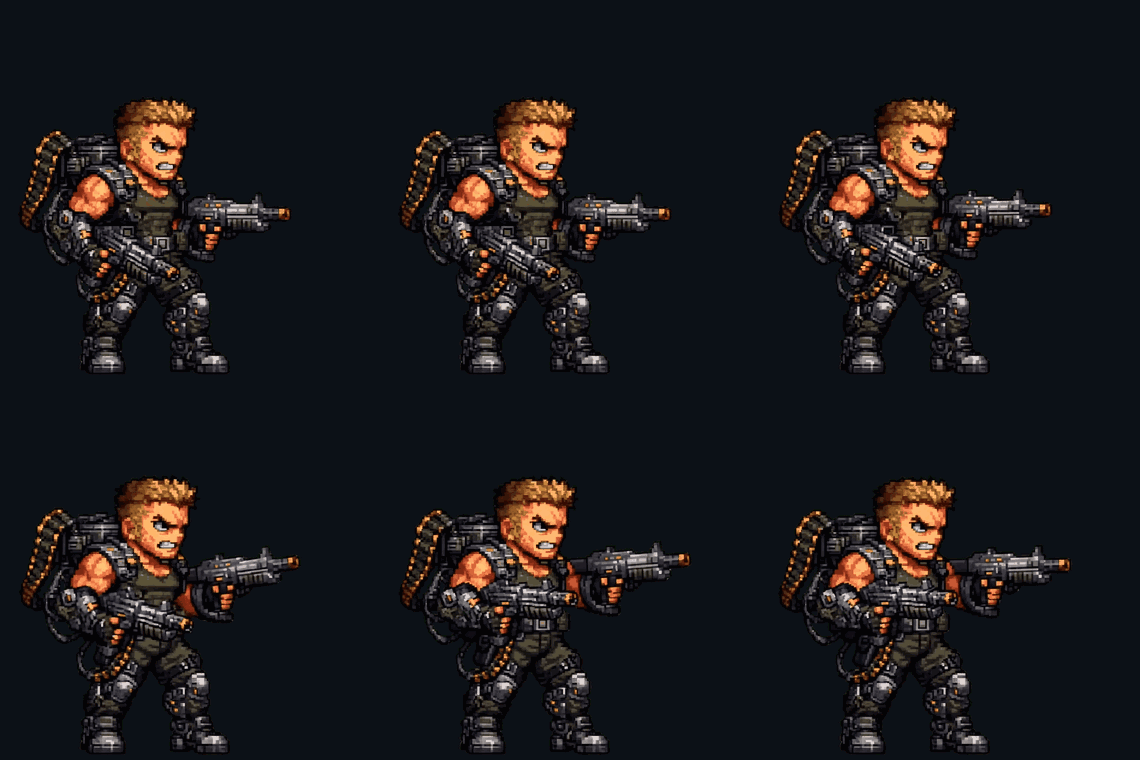
frame_0000.png, frame_0001.png, and on.A video file is a black box. You can scrub it and watch it, but the moment you want to touch a single frame — fix a stray pixel, redraw a hand, paint out a watermark — the frames aren't sitting there waiting. They're packed, predicted, and compressed against each other. A PNG frame sequence pops the lid open: same clip, but every frame is now its own flat, lossless still in a folder, numbered in order. In that shape it's editable, packable, and importable — and that's where the useful work starts.
What a PNG sequence actually is, and why bother
A PNG sequence is just a folder of PNG files — frame_0000.png, frame_0001.png, and so on — one image per frame, in playback order. Nothing fancy. But the reasons I keep reaching for it add up.
- It's lossless. Unlike a JPEG screenshot, PNG doesn't smear your edges with compression artifacts. What was in the frame lands on disk.
- You can edit frames individually. Open frame 7, fix the thing, save it back. The sequence doesn't care — it's just files. This is the whole reason cleanup is possible.
- It's the input for everything downstream. A sprite sheet is built from a frame sequence; an engine's image-sequence importer wants exactly this. Raw material, not finished product.
- It preserves alpha. If your source carries transparency, PNG keeps it. Most MP4s don't — that's a codec thing — but WebM with alpha does, and the sequence will hold it.
If you've ever done this the "real" way with a command-line tool, you know the dance: install something, remember the flag soup, fight the syntax. Doing it in the browser is about skipping all of that. So let's just do it.
Step by step with the Frame Extractor
Everything below happens in the Frame Extractor — open it in a tab and follow along.
- Load your clip. Drag an MP4, WebM, or MOV straight onto the page, or hit Choose Video. It loads into a
<video>element in your browser. Nothing leaves your machine — I'll come back to why that matters. - Set the FPS basis. This is the one knob people get wrong. Your source is probably 30 fps. Do not just keep 30. For game and animation work, sample down to 12 to 15 fps. At 30 you get a pile of nearly-identical frames that bloat your sheet and double your cleanup for no visible benefit. At 12–15 you get fewer, more distinct frames that read as animation and don't waste atlas space.
- Set the output PNG size. Pick Use Source to keep the clip's native resolution and aspect ratio, or force a fixed size like 1024×1024 if you want square frames for a tidy sheet. I usually keep source while I'm still iterating and only lock to a square once the framing is final.
- Trim if you want. By default it exports the whole clip. To grab a slice, scrub to where the motion starts and hit Set Start, scrub to the end of the loop and hit Set End. Now only that range exports. Saves you deleting a hundred junk frames by hand later.
- Click Export PNG. Here the browser matters. In Chrome and Edge, the File System Access API lets you pick a real folder, and frames write straight into it as they render — no zip. Other browsers fall back to a single ZIP download with all the PNGs inside. Same frames either way; just one unzip step on Firefox or Safari.
Notice the filenames: they're zero-padded and numbered — 0009, 0010, 0011 — not 9, 10, 11. That padding isn't cosmetic. It keeps frames sorting correctly when your sheet packer or engine reads the folder alphabetically. Without it, frame 10 sorts before frame 2 and your walk cycle plays its feet backwards. The tool handles it for you, but it's worth knowing why it's there.
It all runs locally — which is the actual selling point
I'll be blunt about this because it's easy to gloss over. Your video never gets uploaded. The decoding, the frame grabbing, the PNG encoding — all of it happens in your browser, on your hardware. No server, no account, no "your file is processing" spinner that's secretly a queue on someone else's box.
For unreleased game assets, this is not a nice-to-have. If you're pulling frames from a boss animation for a game that hasn't shipped, the last thing you want is that clip sitting in some web service's bucket under a retention policy you never read. Local means it stays yours — which is why I stopped using upload-based converters years ago.
When a PNG sequence is the wrong answer
A frame sequence is right when you need to work on the frames — edit, pack, import. It's wrong when you just need something to play.
If the goal is a self-contained looping image — a hover preview, a Discord reaction, an animating thumbnail — you don't want a folder of PNGs. You want a single looping GIF or APNG. GIF is universal but caps at 256 colors with ugly hard-edged transparency; APNG keeps full color and proper alpha but isn't supported everywhere. I break that tradeoff down in GIF vs APNG vs sheet, and the export walkthrough lives in MP4 → animated GIF. Rule of thumb: if a human looks at it as-is, make a GIF or APNG; if a pipeline eats it, make a PNG sequence.
The reason I use this constantly: AI clips
Most of my frame-extraction these days is pulling stills out of AI-generated video for a 2D game. A text-to-video model spits out a three-second clip of, say, an idle creature breathing. Useless to an engine as-is — but extract it at 12 fps, clean a couple of frames, and now I've got the raw motion for a sprite. It's a real way to get animation without hand-drawing every frame, with the obvious caveat that AI video flickers and the frames need taming.
That whole pipeline — model output to game-ready sprite — is its own thing, written up in AI video → game sprites. Once you've got your sequence, the next move is almost always packing those frames into one image; Sprite sheets 101 covers cutting and aligning them so they don't jitter. The PNG sequence is the bridge between the two.
FAQ
Q. Does PNG export keep transparency from my video?
Yes, if the source actually has it. PNG supports alpha, so the tool preserves whatever transparency the clip carries. The catch is most MP4s don't have any — H.264 doesn't store alpha — so you'll usually get an opaque background unless your source is a WebM with alpha or you key out the background afterward.
Q. Why shouldn't I just export at the source 30 fps?
You can, but you'll get a wall of near-duplicate frames that double your file count, bloat your sprite sheet, and add cleanup work for no visible payoff. Sampling down to 12–15 fps gives you fewer, more distinct frames that still read as smooth animation. Higher fps only helps for slow-motion analysis, not game sprites.
Q. What's the difference between the folder and the ZIP?
None, in terms of the actual frames. Chrome and Edge support the File System Access API, so they can write PNGs straight into a folder you pick. Firefox and Safari don't, so they bundle the identical frames into one ZIP you unzip afterward. Browser capability, not a quality difference.
Q. Is my video uploaded anywhere?
No. Decoding and PNG encoding run entirely in your browser on your own machine. Nothing is sent to a server, which is exactly why it's safe to use on unreleased assets.
Q. Why are the filenames padded with zeros?
So they sort correctly. frame_0010.png comes after frame_0009.png alphabetically, but frame_10.png would sort before frame_2.png and scramble your animation order. The zero-padding keeps your sheet packer and game engine reading frames in the right sequence.
Q. Should I make a PNG sequence or a GIF?
Make a sequence if you're going to edit, pack, or import the frames into a pipeline. Make a GIF or APNG if you just need a single file that loops on its own for a preview, reaction, or thumbnail. Sequence for working, GIF/APNG for showing.