Fixing the Color Flicker and Shimmer in AI-Generated Video
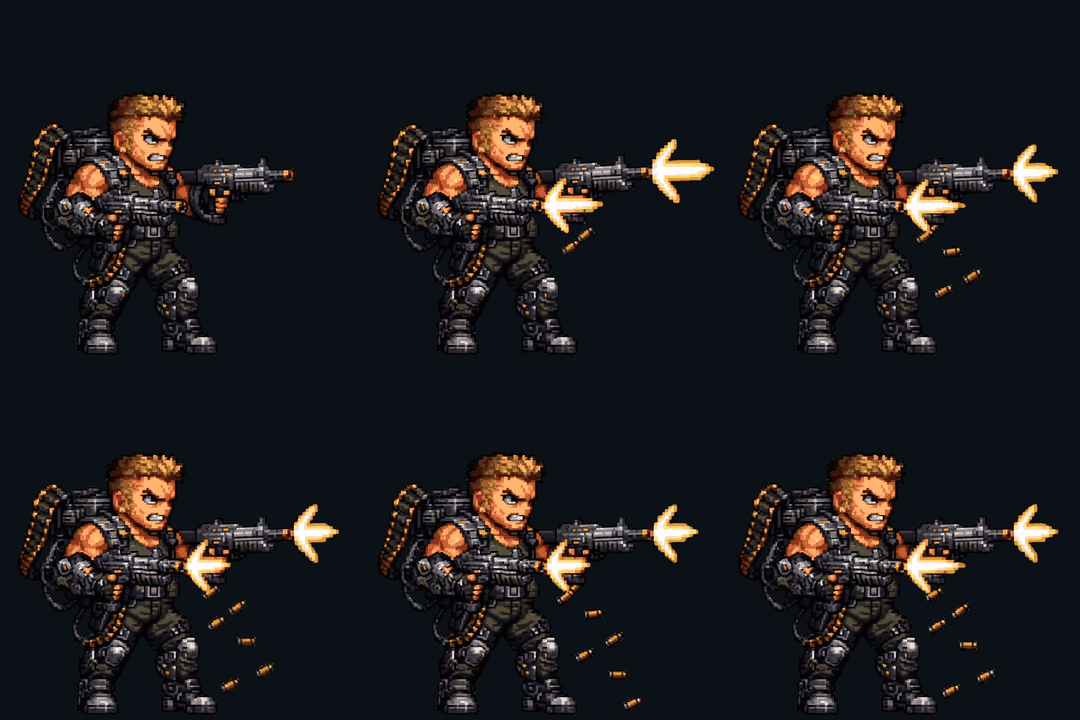
I build a 2D tower-defense thing, the lane-and-creatures kind everyone compares to Plants vs. Zombies. My characters start life as GPT-made stills, and to animate them I drop the still into a video model and ask for a short loop. The first time I pulled frames out of one of those clips and lined them up, the sprite looked like it was lit by a dying fluorescent tube. The colors wouldn't hold still. A green creature was lime on one frame and a touch toward teal on the next, the glow on its core pulsed when it shouldn't, and the soft edges crawled like the whole thing was breathing. That's temporal shimmer, and once you see it you can't unsee it. This is what I've learned about killing it, or at least hiding it well enough to ship.
What the flicker actually is
Video models don't paint a frame and then carefully nudge it forward. Under the hood each frame is denoised semi-independently from noise, with the previous frames as a guide rather than a hard contract. So every frame lands in a slightly different place. Hue drifts a few degrees, brightness wobbles, and any fine texture starts to "boil" — that simmering, never-settling look on hair, fur, smoke, or pixel-y detail. Edges crawl frame to frame because the model re-decides where the boundary is every time.
This is not a bug you can report and wait for a patch to fix. It's baked into how current models generate motion. I see it on Veo, Sora, Kling, and Runway alike — the amount varies, the character doesn't. If a clip looks rock-steady when you play it at full speed, that's usually because motion blur and 24fps are hiding the per-frame drift from your eye. Pull the frames apart for a sprite and the hiding stops.
Why it's worse for sprites specifically
Two reasons. First, sprites are small. A 96px creature has no room to absorb a few stray pixels of color drift the way a 1080p shot does — at sprite scale a one-frame hue shift is a chunk of the whole silhouette. Second, sprites loop, often forever, sitting in the corner of the screen. A wobble you'd never notice in a one-shot clip becomes a metronome when it repeats every second. Your eye locks onto the one frame that's off-color and the whole animation reads as cheap.
And the worst offenders are exactly the parts I most want: thin edges and translucent, glowy bits. The creature in the figure above is built around a glowing core, and that core is where the flicker lives. Semi-transparent pixels are the model's most uncertain pixels, so they're the ones that change the most between frames. Thin antennae, wispy smoke, energy auras, glass — all of it shimmers first and worst.
The fixes, roughly in order of impact
I've ordered these by how much they actually buy you. The early ones are about generating less drift in the first place; the later ones are about hiding what's left. You'll usually stack several.
1. Start from one locked still (image-to-video)
This is the single biggest lever. Image-to-video beats text-to-video for consistency by a wide margin, because you're handing the model a fixed anchor instead of letting it reinvent the character from a prompt. Since my characters are already GPT stills, this is free — I feed the exact sprite in and ask only for motion. If you're generating from text, do a still first, lock it, then animate that.
2. Keep clips short — 2 to 4 seconds
Drift compounds over time. Frame 90 is further from your locked still than frame 20 is, so a long clip slowly walks away from where it started — colors shift, the design loosens, the glow wanders. A 2–4 second clip never gets far enough to fall apart. For a looping sprite you only need a second or two of usable motion anyway, so there's no reason to render ten seconds and fight the back half.
3. Extract at a low fps — 12 to 15, "on twos"
This one surprised me. The jitter lives mostly in the in-between frames, the rapid micro-changes the model makes from one tick to the next. If you sample at the full 24–30fps you capture every twitch. Sample at 12–15fps — animators call it working "on twos" — and you skip most of the jittery in-betweens. Fewer frames, bigger jumps between them, and the eye reads the result as crisp and deliberate rather than nervous. Hand-drawn animation has run on twos forever for exactly this reason. In the Sprite Frame Extractor you just set the extract fps low and pick your loop range right there; it's the fastest single improvement after image-to-video.
4. Generate on a flat solid background and key it out
Half of the shimmer you notice is the background boiling behind the character, not the character itself. So don't give the model a background to boil. Generate on a flat solid color — a chroma green or magenta the sprite doesn't contain — and then key it out. Background shimmer doesn't get reduced, it disappears entirely, because the background is gone. As a bonus a flat backdrop gives the model fewer things to spend its attention on, which tends to steady the subject too. I walk through the keying in remove the background.
5. Roll a few takes and pick the steadiest
Generation is a dice roll, and some seeds simply hold together better than others. I render the same prompt three or four times and scrub each one looking for the calmest core and the least edge crawl. It costs a few credits and five minutes, and it's often the difference between a clip I have to babysit and one that just works. Don't marry your first generation.
6. Loop the most stable stretch, not the whole clip
Even inside one good take, the steadiness isn't uniform. There's usually a stretch — maybe a second in the middle — where the color sits still and the motion is clean, bracketed by wobblier bits at the head and tail. Set your loop range over that calm stretch and throw the rest away. Picking a tight, deliberate loop range (again, right in the extractor) does double duty: it dodges the worst frames and it makes the loop seam easier to hide. More on closing that seam in seamless sprite loops.
7. Let palette quantization hide what's left
This is the trick that genuinely surprised me, so I'll be blunt about why it works. Subtle flicker is mostly near-identical colors drifting by a few values frame to frame. When you export to a limited palette, those near-identical colors get snapped to the same swatch — and the drift vanishes because there's no longer a different color to drift to. GIF at 256 colors hides a lot. APNG at 64–128 colors hides more. The fewer colors, the more aggressively flicker collapses. For pixel art this is close to a total solution: snap every frame to one fixed palette and the shimmer is gone, because identical input over a shared palette produces identical output. I rely on this constantly; the palette-snap step is laid out in cleaning up AI pixel art.
8. Last resort: touch up a few frames by hand
If one frame is still off after all that — a stray bright pixel on the glow, an edge that pops — just fix that one frame in an image editor. Color-pick from a neighboring good frame, paint over the offender, done. On a 12fps loop that's two or three frames at most, fifteen minutes of work. I save this for the hero sprites the player stares at, not the background mob.
An honest word on what you can't fix
If your frames are photoreal — real skin, real fur, real reflections — you will not fully kill the shimmer. Photoreal detail has thousands of subtly different colors with nowhere to hide, so palette snapping ruins the look instead of saving it, and the boiling stays visible. You can reduce it with the steps above, but reduce is the honest word. On stylized and pixel sprites, the kind most of us actually ship in a 2D game, this is basically solved: flat shading, limited palette, low fps, and the flicker is gone for free. The flip side of "AI video is shimmery" is that the more game-like your art already is, the less the shimmer matters. For the end-to-end version of this pipeline, see AI video → game sprites.
FAQ
Q. Why do my AI video frames flicker when the clip looks fine playing?
Each frame is denoised semi-independently, so hue and brightness drift a little every frame. At full speed, motion blur and 24fps hide that from your eye. Pull the frames apart for a sprite and the per-frame drift becomes visible. It's inherent to how Veo, Sora, Kling, and Runway generate motion, not a setting you forgot.
Q. What's the fastest single thing that reduces shimmer?
Generate from a locked still (image-to-video) instead of text-to-video, then extract at a low fps. Image-to-video gives the model a fixed anchor so it drifts less, and sampling at 12–15fps skips most of the jittery in-between frames where the flicker lives.
Q. Why does exporting as GIF or APNG make the flicker disappear?
Limited palettes snap near-identical colors to the same swatch. Most subtle flicker is colors drifting by a few values frame to frame, so once they all snap to one swatch there's nothing left to drift to. GIF (256 colors) hides a lot, APNG at 64–128 hides more, and a fixed pixel-art palette removes it almost completely.
Q. The worst flicker is on glowing and translucent parts. Why?
Semi-transparent pixels are the model's most uncertain pixels, so they change the most between frames. Glowy cores, energy auras, glass, smoke, and thin edges all shimmer first and worst. Generating on a flat keyable background and snapping to a tight palette helps; for hero sprites, a quick manual touch-up on a couple of frames finishes the job.
Q. Can I get fully flicker-free frames from AI video?
On stylized or pixel sprites, effectively yes — flat shading plus a fixed palette and low fps gets you there. On photoreal frames, no. Photoreal detail has too many subtly different colors to snap together without wrecking the look, so you can reduce the boiling but not eliminate it.
Q. What fps should I extract at for a sprite loop?
Around 12–15fps, working "on twos." It skips the twitchy in-between frames, reads as crisp instead of nervous, and gives you fewer frames to clean up and loop. Set the extract fps and pick your loop range over the steadiest stretch directly in the frame extractor.